NoteGen
Cross-platform AI note-taking with local storageRecord anywhere, organize with AI
Highlights
What you can do with it
- Students record class notes and turn them into review material
- Writers use AI writing help to draft quickly
- Researchers document experiments with screenshots and notes
How to use it
- 1 Download and install NoteGen on your device.
- 2 Choose a recording method such as screenshot, text, or AI conversation.
- 3 Use the clipboard assistant to capture text and images as you work.
- 4 Organize everything in the Markdown editor, adding diagrams and formulas.
- 5 Set up GitHub sync if you want cloud backup.
- 6 Use global search and the AI writing tools to finish your document.
Who it is for
Pros
- Notes stay as local Markdown files you own
- Several capture methods in one tool
- GitHub sync for backup across devices
- Rich editor with diagrams and math support
Limitations
- Pricing is not clearly stated and may need payment or a trial
- GitHub sync needs an account and some setup
- Initial configuration takes effort
- The project depends on continued maintenance
What NoteGen is
NoteGen is a cross platform AI note taking tool focused on recording and writing. It supports screenshot, illustration, text, and AI conversation recording, so a capture can arrive in whatever form is easiest at the moment. A clipboard assistant listens to the clipboard and asks whether you want to save what you just copied, text or image. An AI assistant then helps turn those raw records into organized text. The built-in Markdown editor supports a toolbar, image hosting, Mermaid diagrams, and KaTeX formulas, notes are stored locally offline, and synchronization runs through GitHub private repositories. Global search and writing assistance such as continuation, translation, and optimization round out the feature set.
What you can do with it
- Capture notes by screenshot, illustration, text, or AI conversation.
- Let the clipboard assistant save copies automatically.
- Organize records into structured Markdown documents.
- Sync to a GitHub private repository and search everything at once.
Who it is for
- Students recording and reviewing class material.
- Writers who capture ideas across a working day.
- Researchers documenting procedures and data.
- Anyone who wants notes as plain Markdown files they own.
What to watch out for
Pricing is not clearly stated in the listing, so check the project page for current terms before you depend on it. GitHub sync needs an account and some setup, including a private repository, which is more friction than a typical cloud note app. Initial configuration takes effort: choose your storage location, set up sync, and get used to the recording methods before the tool feels natural. The project also depends on continued maintenance, so check how actively it is developed. And because notes live on your own machine, backups are your responsibility until sync is configured.
FAQ
Is NoteGen free?
Pricing is not clearly stated in the listing, so check the project page for current terms.
Where are notes stored?
Locally, as Markdown files, with optional GitHub sync.
Can it sync between devices?
Sync runs through GitHub private repositories.
What recording methods are supported?
Screenshot, illustration, text, and AI conversation recording, plus a clipboard assistant.
Why it is free
What the official page says: free trial
Free limits, trial length and features are decided by the official site and can change at any time.
Product preview
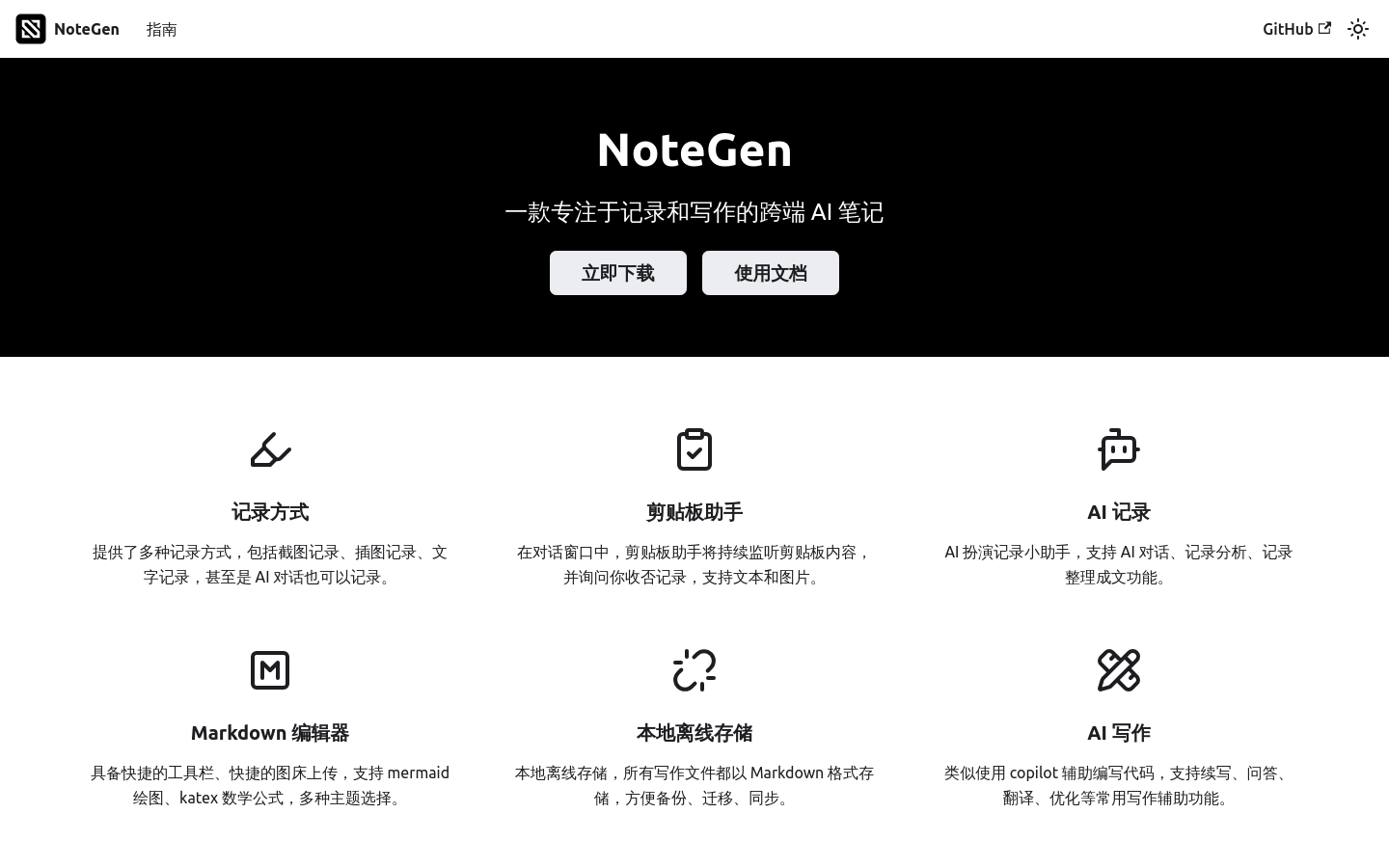
Screenshot archived from the listing page, for preview only.