VideoBee
Free online video tools: compress, convert, trimFree video tools, no watermark, no sign-up
Highlights
What you can do with it
- Compress a large screen recording to send to a client
- Shrink a video under a platform or chat upload limit
- Convert a camera format like MTS to MP4 and extract the audio
How to use it
- 1 Open videobee.ai in your browser, no login needed
- 2 Pick the tool you need: compress, convert, trim, crop, audio, or MP4 to MP3
- 3 Upload your file, keeping the size limits in mind (10GB compress, 5GB others)
- 4 Set the options, such as target size, output format, or trim points
- 5 Start processing, then download the result when it is ready
Who it is for
Pros
- Completely free, no watermark, no registration
- One place for compression, conversion, trimming, and audio
- Cloud processing works on low-spec devices and phones
- Handles large files up to 10GB for compression
- States videos are not used for AI training and are deleted in 24 hours
Limitations
- Processing runs in the cloud, so you must upload files and need a stable connection
- The free service and its file limits could change over time
- Large files can take longer to process, depending on size and network speed
- Cloud processing means trusting a third party with your files, so avoid sensitive video
What VideoBee is
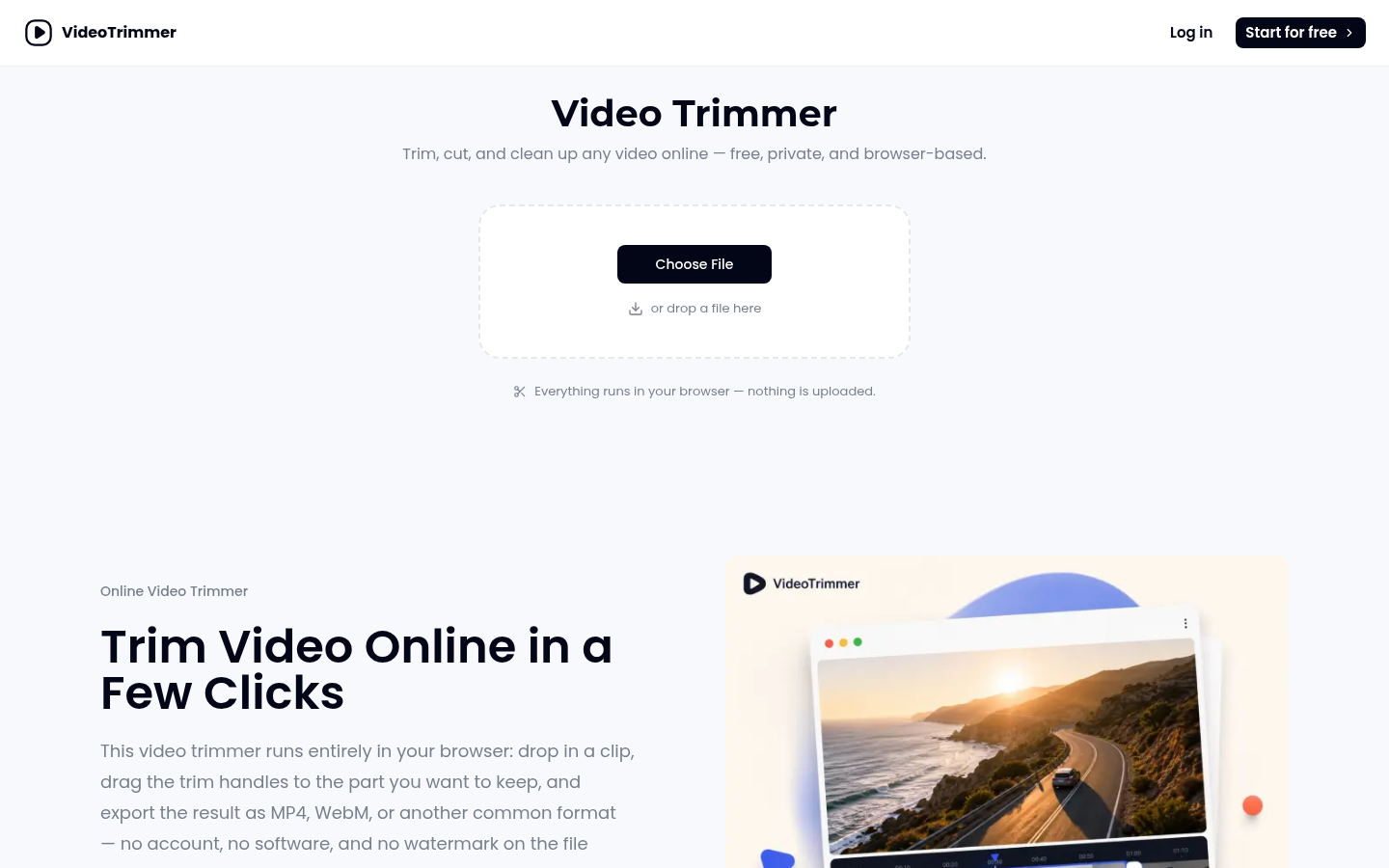
VideoBee is a free suite of online video tools that runs in your browser with no install. It brings together video compression, format conversion, trimming, frame cropping, audio editing, and MP4 to MP3 conversion in one place. The work happens in the cloud: you upload a file and the server processes it, so even low-spec computers, Chromebooks, and phones can handle large videos. Compression supports files up to 10GB, and the other tools up to 5GB. There is no watermark and no registration. The service says videos are not used for AI training and that output files are deleted within 24 hours.
What you can do with it
- Compress a video by setting a target size or adjusting quality and bitrate
- Convert between 16 input and 19 output video and audio formats
- Trim clips with a timeline or exact start and end times
- Crop frames and change aspect ratios like 9:16 and 1:1
- Trim audio or extract MP3 from a video
Who it is for
- Content creators who shoot and share video
- Community admins working under strict upload limits
- Educators and everyday office users handling common video files
What to watch out for
VideoBee processes files in the cloud, so you have to upload your video and need a stable connection and enough patience for large files, which take longer depending on size and network speed. The free service and its file limits could change over time, so check the current terms before you rely on it. Because files are processed on a third-party server, avoid uploading sensitive video even though the service says it does not use videos for AI training and deletes output within 24 hours. Always confirm the result looks right before you delete your original.
FAQ
Is VideoBee free?
Yes. It is completely free, with no watermark and no registration.
What tools does it include?
Video compression, format conversion, trimming, cropping, audio trimming, and MP4 to MP3 conversion.
How big can the files be?
Up to 10GB for compression and up to 5GB for the other tools.
How many formats does it support?
It converts 16 input formats to 19 output formats, covering video and audio types.
What happens to my files?
Processing is done in the cloud. The service says videos are not used for AI training and output files are deleted within 24 hours.
Why it is free
What the official page says: no registrationcompletely freefree to use
Free limits, trial length and features are decided by the official site and can change at any time.
Product preview
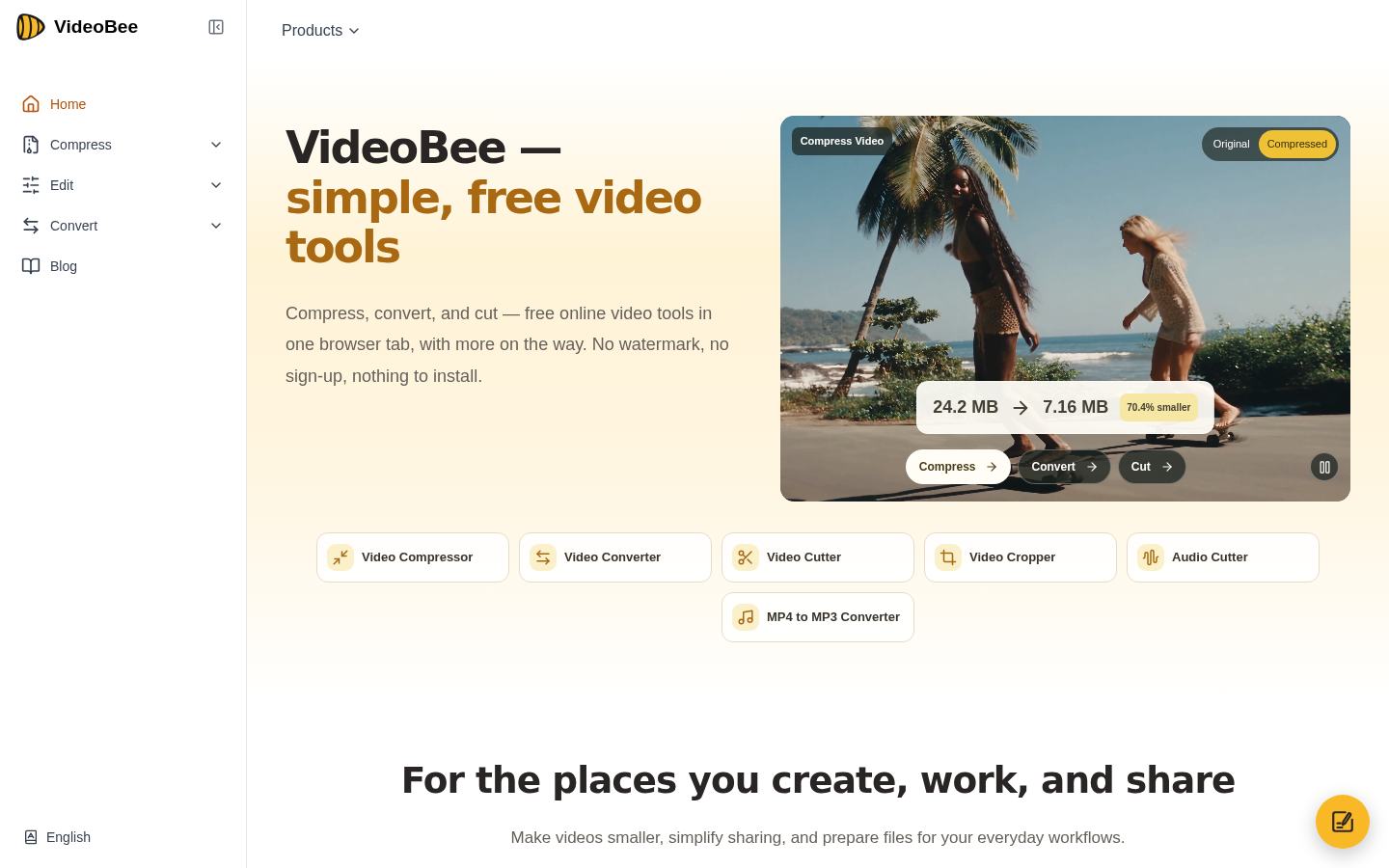
Screenshot archived from the listing page, for preview only.