Classroom Screen
Free classroom widgetsTimers, polls and visuals for teaching
Highlights
What you can do with it
- Show the day's schedule and learning objectives at the start of class
- Run a quick comprehension check with the voting widget
- Split the class into balanced groups and pick speakers fairly
How to use it
- 1 Visit classroomscreens.net in your browser
- 2 Browse the widget panel and pick the tools you need
- 3 Set each widget, such as timer length or poll question
- 4 Show the screen on a smart board or share it in a remote lesson
- 5 Save settings with a free account if you want to reuse them
Who it is for
Pros
- Free version covers the core classroom widgets
- No install, so it works on most classroom machines
- Highly customizable layout and backgrounds
Limitations
- Pro features such as saved long-term plans require payment
- Saving preferences needs a free account, which means signup
- It relies on the site staying online and on classroom internet access
What Classroom Screen is
Classroom Screen is a free web-based classroom management tool for teachers. Instead of juggling separate apps, you open one screen and place widgets where you need them: a clock, a countdown timer, a traffic light for noise levels, a voting tool for quick checks, a group generator, and a random name picker. There is nothing to install, and the free version is fully functional. An optional Pro upgrade adds long-term planning so you can save and organize screens for a whole course. Widgets can be dragged, resized, and styled with hundreds of backgrounds, and you can paste a YouTube link to play video without leaving the screen.
What you can do with it
- Display the day's schedule, objectives, and a visible timer
- Collect instant feedback with the voting widget after a lesson
- Build groups with the group generator and pick speakers fairly
- Keep routines visible with the traffic light and custom backgrounds
Who it is for
- Primary school teachers who want engaging, easy to manage visuals
- Middle school teachers who need tight time management and participation
- Remote teaching teachers who must show instructions clearly on a shared screen
What to watch out for
The free version covers everyday classroom use, but saving screens into long-term course plans is a Pro feature, so plan around that if you teach repeating units. To keep your setup you need a free account, which means a signup step. Because the tool runs in the browser, it depends on the site staying reachable and on classroom internet access, so have a backup plan for offline moments. Widgets are visual aids, not a substitute for lesson planning.
FAQ
Is Classroom Screen free?
Yes, the free version is fully functional. Pro is optional and adds long-term planning and saved screens.
Do I need to install anything?
No. It is a web tool, so you open the site in a browser and start adding widgets.
Can I use it for remote lessons?
Yes. You can display the configured screen through screen sharing during remote teaching.
Why it is free
What the official page says: free version
Free limits, trial length and features are decided by the official site and can change at any time.
Product preview
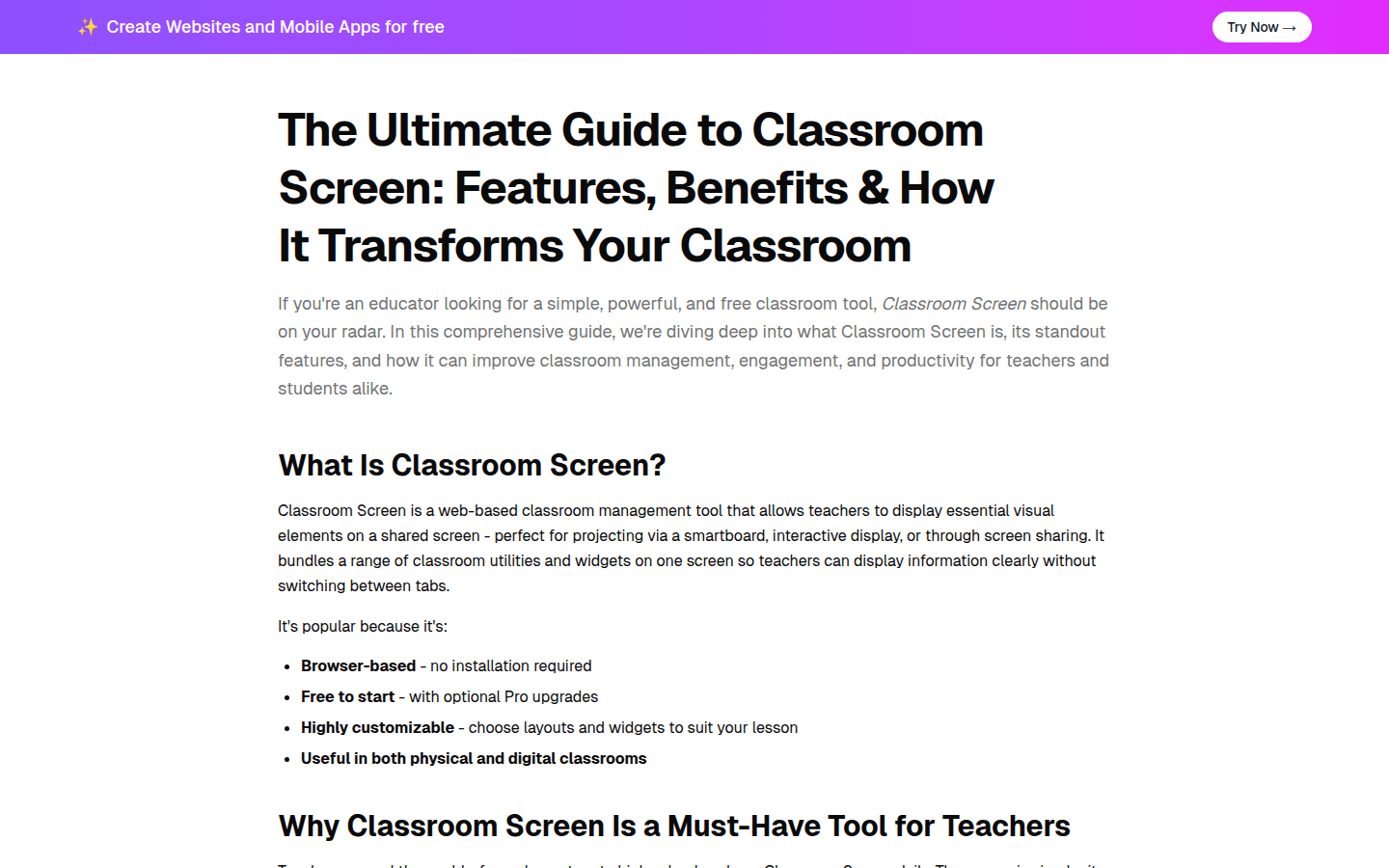
Screenshot archived from the listing page, for preview only.