Free Image to Excel Converter Online, Extract Tables from Photo | FlowChartAI
Free image to Excel toolTurn photos of tables into Excel files
Highlights
What you can do with it
- Convert experimental data images from a textbook into an Excel table for a report
- Digitise market research images so they can be used in an analysis report
- Turn scanned financial statements into editable Excel data
How to use it
- 1 Upload a JPG or PNG image by dragging it in or selecting the file
- 2 Let the AI scan the image and detect the table rows and columns
- 3 Preview the extracted data, then download it as an editable Excel file
Who it is for
Pros
- Completely free and runs fully online with nothing to install
- Keeps table structure and numeric values during conversion
- Supports two common Excel output formats
Limitations
- Accuracy depends on image quality, so blurry photos, merged cells, or handwriting need cleanup
- The free offering can change at any time
- Images are processed through the site, so avoid uploading anything sensitive
What FlowChartAI Image to Excel is
This tool from FlowChartAI converts a photo of a table into an editable Excel file. You upload a JPG or PNG image, AI scans the rows and columns, and you download an XLSX or XLS file. OCR is used to keep the numbers accurate and the layout intact, and there is no software to install because everything runs in the browser. The service is completely free and is aimed at people who would otherwise retype data by hand.
What you can do with it
- Convert photos and screenshots of tables into Excel files
- Keep table structure and numeric values during conversion
- Choose between XLSX and XLS output formats
- Work entirely online without installing anything
Who it is for
- Students pulling data tables out of textbooks and papers
- Marketing and finance staff digitising reports and statements
- Data analysts who receive tables as images rather than files
What to watch out for
Accuracy depends on image quality, so blurry photos, merged cells, or handwriting will need cleanup after conversion. The free offering can change, and the tool processes images through the site, so avoid uploading anything sensitive. Always check the numbers in the output before you use them for real work. For best results, start with a small test file and review the output carefully before working on anything important. Free tiers can change over time, so it is worth checking the current limits on the official page before you rely on the tool daily. If the result is not quite right, try adjusting your input description or settings and run the task again. Keep a backup of your original files in case you need to redo the work later.
FAQ
Which image formats can I upload?
Common formats such as JPG and PNG, whether they are photos or screenshots.
Is the conversion accurate?
OCR is used to keep numbers and layout intact, but accuracy still depends on the quality of the source image.
Do I need to install anything?
No. The tool runs in the browser and the service is completely free.
Why it is free
What the official page says: for freecompletely free
Free limits, trial length and features are decided by the official site and can change at any time.
Product preview
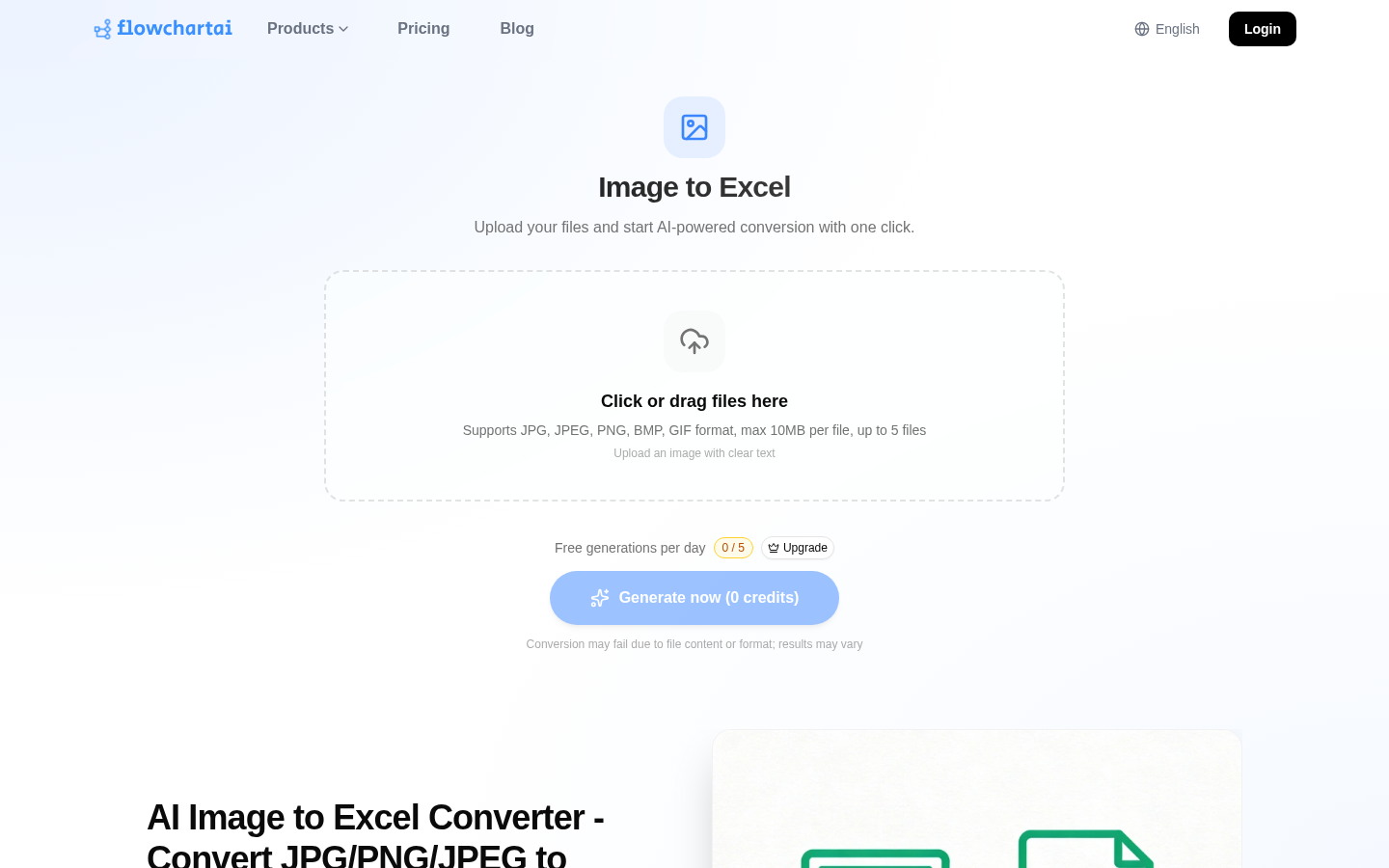
Screenshot archived from the listing page, for preview only.