Gemoo
Video, screen recording and screenshot sharingExplain it with a clip instead of paragraphs
Highlights
What you can do with it
- Showing a teammate exactly what is wrong on screen
- Recording a walkthrough instead of writing steps
- Sending visual feedback on a design or document
How to use it
- 1 Record your screen, camera or both, or take a screenshot
- 2 Add annotations such as text, arrows and shapes while recording
- 3 Share the link, or set access limits and a password first
- 4 Send the link through Slack, email or social media
Who it is for
Pros
- Faster than writing long instructions for anything visual
- Annotation adds context that a bare screenshot lacks
- Viewers do not need an account to open a shared link
- Access can be limited or password protected
Limitations
- Recording limits, storage and paid tiers are not spelled out in the listing
- Instant sharing depends on the service being reachable
- Video and screenshot quality still depends on your source screen
- Sharing links externally needs care, since access control is only as strong as the settings you choose
What Gemoo is
Gemoo is a tool for expressing ideas visually through short videos, screen recordings and screenshots. The pitch is that a clip removes confusion that text leaves behind: you show the thing rather than describing it. While recording you can add real-time annotations such as text, shapes and arrows so the viewer knows where to look. The listing says video can go up to 4K resolution and screenshots are lossless high definition, so detail survives the capture. Sharing is instant, with no waiting for uploads and processing before you can send a link.
What you can do with it
- Record your screen, your camera, or both to explain a process.
- Take high definition screenshots and mark them up immediately.
- Add text, arrows and shapes in real time so attention lands in the right place.
- Share a link instantly through Slack, email or social media.
- Restrict who can open a shared item, or protect it with a password.
Who it is for
- Remote teams that need asynchronous explanations instead of another meeting.
- Support and customer success staff who answer the same question repeatedly.
- Designers and reviewers who want to give feedback on a specific pixel.
- Anyone writing instructions that would be clearer as a thirty second clip.
What to watch out for
The listing does not spell out recording length limits, storage caps or what each paid tier includes, so check the site for the current plan details before you build a workflow around it. Sharing depends on the service being reachable, so a link sent to a client is only as reliable as the host. Output quality still depends on your source screen and microphone, so a 4K setting will not fix a cluttered desktop or a noisy room. Finally, link sharing is convenient but permanent by default, so set access limits carefully before sending anything sensitive to a wide audience.
FAQ
Do viewers need an account?
No. The listing says recipients can open a shared link and view the content without registering.
What quality does it support?
Video up to 4K resolution and lossless high definition screenshots.
Can I annotate while recording?
Yes, real-time annotations such as text, shapes and arrows are listed as a feature.
How do I control who sees a clip?
You can precisely control access to shared videos and screenshots, or share through password protected links.
Where can I send a link?
Anywhere, including Slack, email and social media.
Why it is free
What the official page says: 无需注册
Free limits, trial length and features are decided by the official site and can change at any time.
Product preview
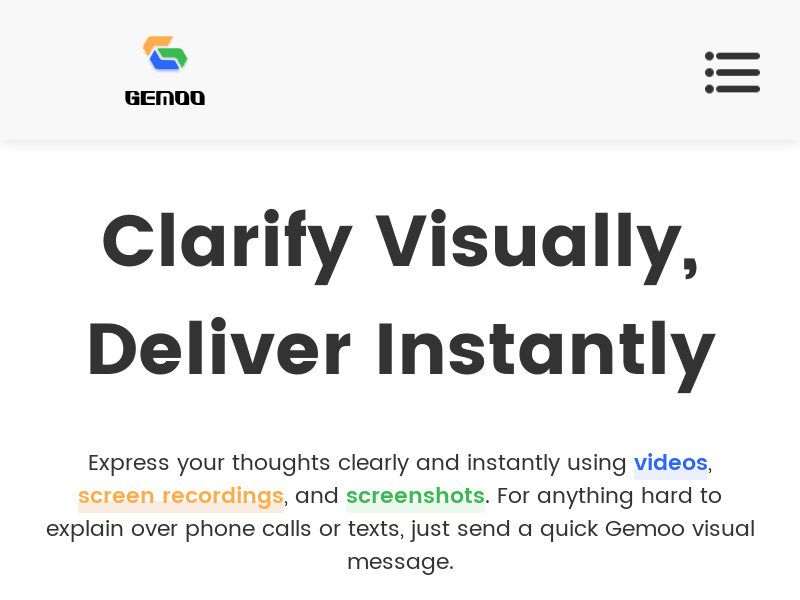
Screenshot archived from the listing page, for preview only.