Neutron
Desktop AI assistant that reads your screenPress Option to ask, dictate and automate tasks
Highlights
What you can do with it
- Summarise and reply to a large batch of emails by voice
- Dictate ideas straight into a document without typing
- Get help on a task without leaving the app you are in
How to use it
- 1 Download the desktop client for macOS or Windows and install it
- 2 Start the free trial and sign in if required
- 3 Press Option to open the chat, or hold it and speak to ask by voice
- 4 Focus a text box, hold Option, and speak to have text written in
- 5 Set persistent instructions to match your workflow and tone
Who it is for
Pros
- Works inside other apps instead of a separate browser tab
- Voice input and direct writing remove copy and paste steps
- Encryption plus on-demand screenshots limit routine data exposure
Limitations
- Only a free trial is offered, then paid upgrades apply
- Screen viewing means the AI sees what is on your display
- The fully local version is described as planned, not shipped
What Neutron is
Neutron is a desktop client that uses AI to automate tasks on your computer. You activate it with the Option key, or by holding that key and speaking, and the AI can view the screen, read files, offer assistance, and write directly into text boxes. Custom instructions let you set a persistent tone and set of rules that apply across different applications. On privacy, the listing says data is encrypted during transmission and storage, that screenshots are taken only when you clearly ask a question, and that a fully local version running without server communication is planned. It runs on macOS and Windows, and a free trial is offered with paid upgrades available at any time.
What you can do with it
- Summarise and answer email without switching apps
- Dictate thoughts straight into a document or form field
- Ask about what is on screen and get an answer in place
- Apply saved instructions so answers match your usual tone
Who it is for
- Office workers facing heavy email and document workloads
- Multitaskers who cannot stop and type in the middle of a task
- Privacy-conscious users who want encryption and a local option
What to watch out for
The free trial is temporary, and continued use means a paid plan, so treat the trial as an evaluation window rather than a permanent free tool. Screen viewing means the AI can see whatever is on your display when you call it, including private documents and messages, so be deliberate about when you invoke it and review the privacy policy. The fully local version is described as planned rather than available, so today the listing points to encrypted server handling. Voice and screen reading also depend on audio quality and clear on-screen content, and automation accuracy will vary with how specific your instructions are.
FAQ
Is Neutron free?
The listing says there is a free trial and users can upgrade to a paid plan at any time.
Does it record my screen all the time?
The listing says it does not continuously record. It takes a screenshot only when you clearly ask a question or request help.
Which systems are supported?
The listing mentions macOS and Windows desktop clients.
Why it is free
What the official page says: for freefree trial
Free limits, trial length and features are decided by the official site and can change at any time.
Product preview
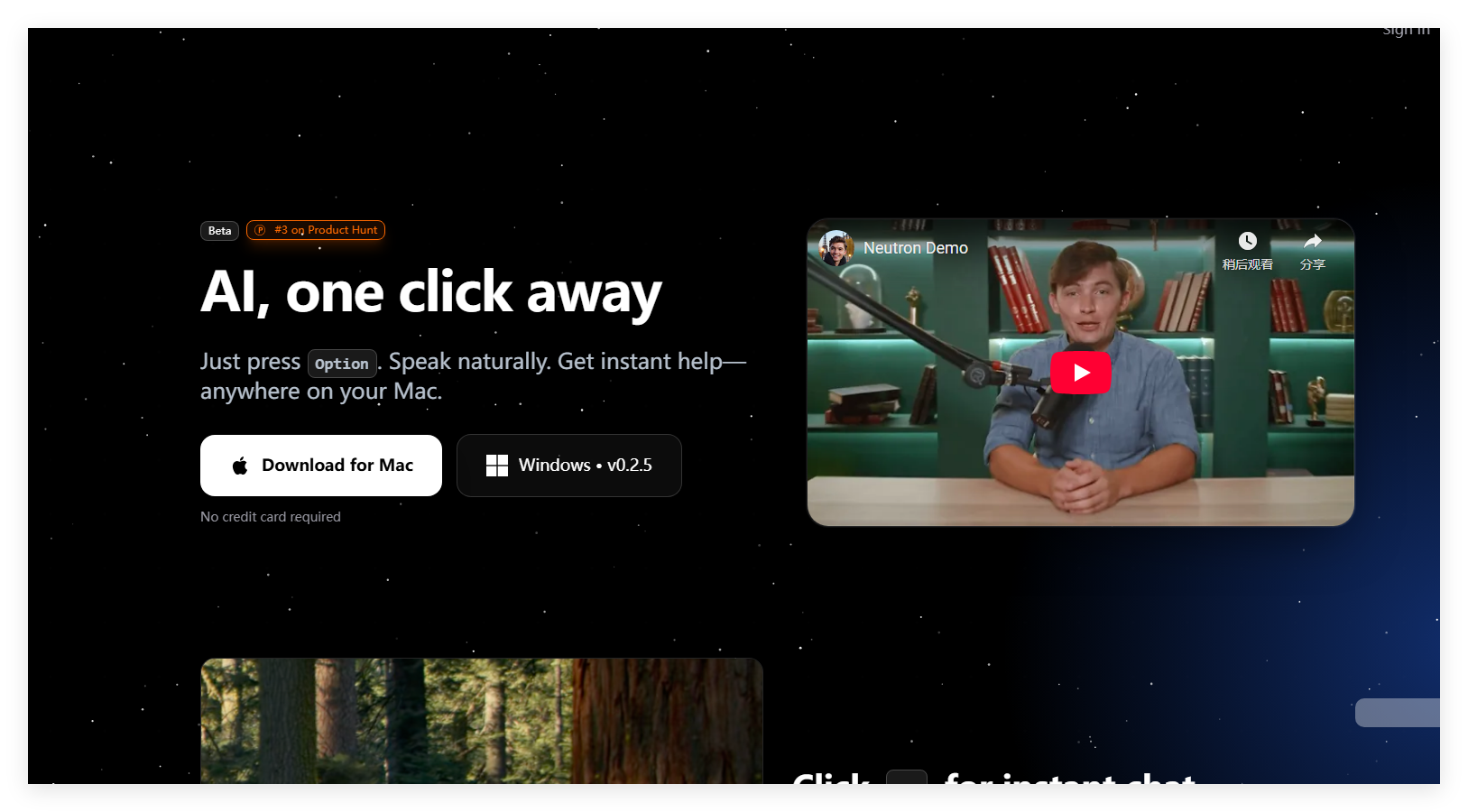
Screenshot archived from the listing page, for preview only.