Raycast Al
Keystroke launcher with AI built inControl your tools with a few keystrokes
Highlights
What you can do with it
- Developers explaining and editing code without leaving the keyboard
- Writers summarizing text and moving between apps quickly
- Anyone reusing clipboard history and launching apps fast
How to use it
- 1 Install Raycast on your Mac.
- 2 Open it with the keyboard shortcut and try the core launcher features.
- 3 Add extensions for the tasks you repeat.
- 4 Upgrade to Pro if you want AI and cloud sync.
- 5 Set a custom theme and your preferred shortcuts.
Who it is for
Pros
- Keyboard-first workflow keeps you in flow
- Free version covers the core launcher
- Extension ecosystem covers many small daily tasks
Limitations
- Pro is required for AI and cloud sync, so the free tier is limited
- It is a macOS tool, so Windows and Linux users are out of luck
- AI answers still need checking before you act on them
- Learning the shortcuts takes a couple of weeks of habit change
What Raycast AI is
Raycast AI is a launcher built around one idea: you should be able to control your tools with a few keystrokes instead of chasing windows. It replaces a handful of small daily actions with one keyboard-driven surface, which is where the time saving actually comes from. The core is a fast interface for opening apps, running commands, and jumping between tasks, which is what keeps you focused. On top of that it layers AI, including an assistant for questions and text summarization and deep integration with AI features on macOS. Extensions add capabilities such as code explanation, cloud sync keeps settings consistent across machines, custom themes change the look, and clipboard history is unlimited so nothing you copied is lost. The free version covers the core features, and Pro unlocks the advanced ones like AI and cloud sync.
What you can do with it
- Launch apps and run commands from the keyboard
- Ask questions and summarize text with the built-in AI assistant
- Extend the launcher with extensions such as code explanation
- Sync settings across devices with cloud sync
- Reuse anything you copied through unlimited clipboard history
Who it is for
- Developers and power users who prefer the keyboard to the mouse
- Writers and researchers moving between many apps all day
- macOS users who want a faster, more scriptable launcher
What to watch out for
The free version is genuinely useful but limited, and the features most people want from the AI side sit behind Pro. It is a macOS tool, so if you are on Windows or Linux this is not an option at all. AI output still needs checking, especially for code and factual claims, and a confident wrong answer is worse than no answer. Finally, the payoff comes from habit: until the shortcuts are muscle memory you will be slower, not faster, so give it a couple of weeks before judging it, and expect to spend real time configuring extensions before it feels like yours.
FAQ
Is Raycast AI free?
The free version includes core features. Pro unlocks advanced capabilities such as AI and cloud sync.
What platforms does it support?
It is a macOS application. The listed AI integration is specifically with AI features on macOS.
What can the AI part do?
It provides question answering and text summarization, and extensions add things like code explanation on top of that.
Does it sync between machines?
Cloud sync is listed as a feature, and it sits on the Pro side of the free versus paid split.
Why it is free
What the official page says: free version
Free limits, trial length and features are decided by the official site and can change at any time.
Product preview
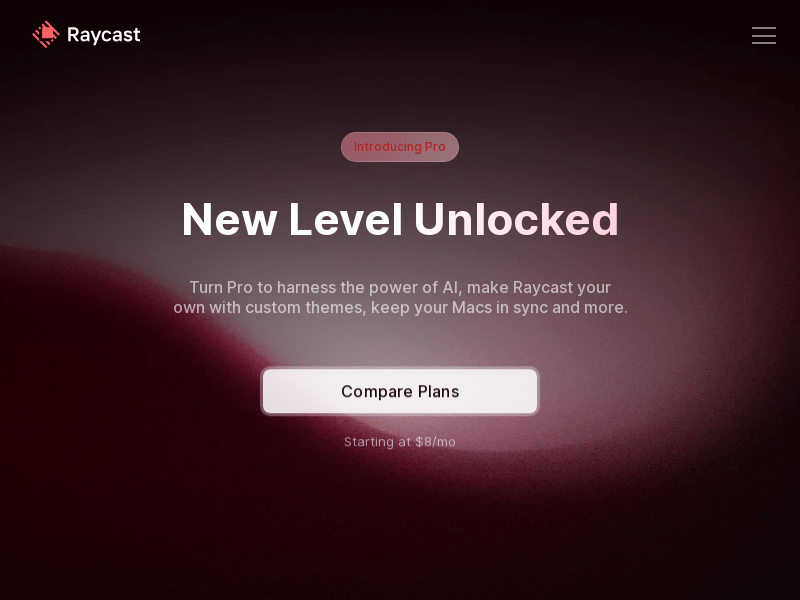
Screenshot archived from the listing page, for preview only.