VideoSlimmer
Online video compressor, no uploadShrink video in your browser, files stay local
Highlights
What you can do with it
- Compress a video to meet a social platform's size limit.
- Shrink a video so it fits an email attachment.
- Reduce storage use by compressing a local video library.
How to use it
- 1 Drag a supported video into the page or browse to select it.
- 2 Choose a preset or set resolution, bitrate, and frame rate.
- 3 Pick an output format such as MP4 or WebM.
- 4 Start compression and watch the real-time preview.
- 5 Download the smaller file, or get a native app for large or offline jobs.
Who it is for
Pros
- Browser compressor is free and needs no upload
- Files stay on your device, which helps privacy
- Flexible controls plus simple presets
- Real-time preview before you download
Limitations
- Browser compression runs at about real-time speed, so long videos take time
- The free browser tool is limited compared with the native apps
- Very large or offline jobs need a paid native app
- Compression always trades some quality for smaller size
What VideoSlimmer is
VideoSlimmer is an online video compressor that runs inside your browser. Because the work happens locally, you never upload the file, which helps privacy and avoids waiting for a server. It supports common formats such as MP4, MOV, WebM, M4V, MKV, AVI, and MPEG. You can trim the ends, change resolution, bitrate, and frame rate, or strip the audio entirely. It offers high, medium, and low presets for quick choices, exports to MP4 or WebM, and shows a real-time preview so you can judge the result before downloading. The browser compressor is free.
What you can do with it
- Compress video in the browser without uploading anything.
- Trim clips and adjust resolution, bitrate, and frame rate.
- Remove audio for silent demos and cut file size further.
- Export to MP4 or WebM and preview the result in real time.
Who it is for
- Everyday users who share video on social media or send it by email.
- Content creators who trim and optimize large amounts of footage.
- Enterprise users preparing internal training and product demo videos.
What to watch out for
Browser compression runs at roughly real-time playback speed, so long videos take a while. The free browser tool has limits, and very large files or offline workflows need the native iOS, Mac, or Windows apps, which are paid. Compression always trades some quality for a smaller size, so check the preview before you replace the original. Keep your source file until you are happy with the output. Run one full task end to end first, then expand once you are comfortable with the workflow and the result quality.
FAQ
Do I have to upload my video?
No. Compression runs in your browser, so the file stays on your device.
Which formats are supported?
It supports MP4, MOV, WebM, M4V, MKV, AVI, and MPEG.
Is it free?
The browser compressor is free; native iOS, Mac, and Windows apps handle larger files and offline work.
Can I trim and remove audio?
Yes. You can trim the start and end and choose to remove audio.
Why it is free
What the official page says: for free
Free limits, trial length and features are decided by the official site and can change at any time.
Product preview
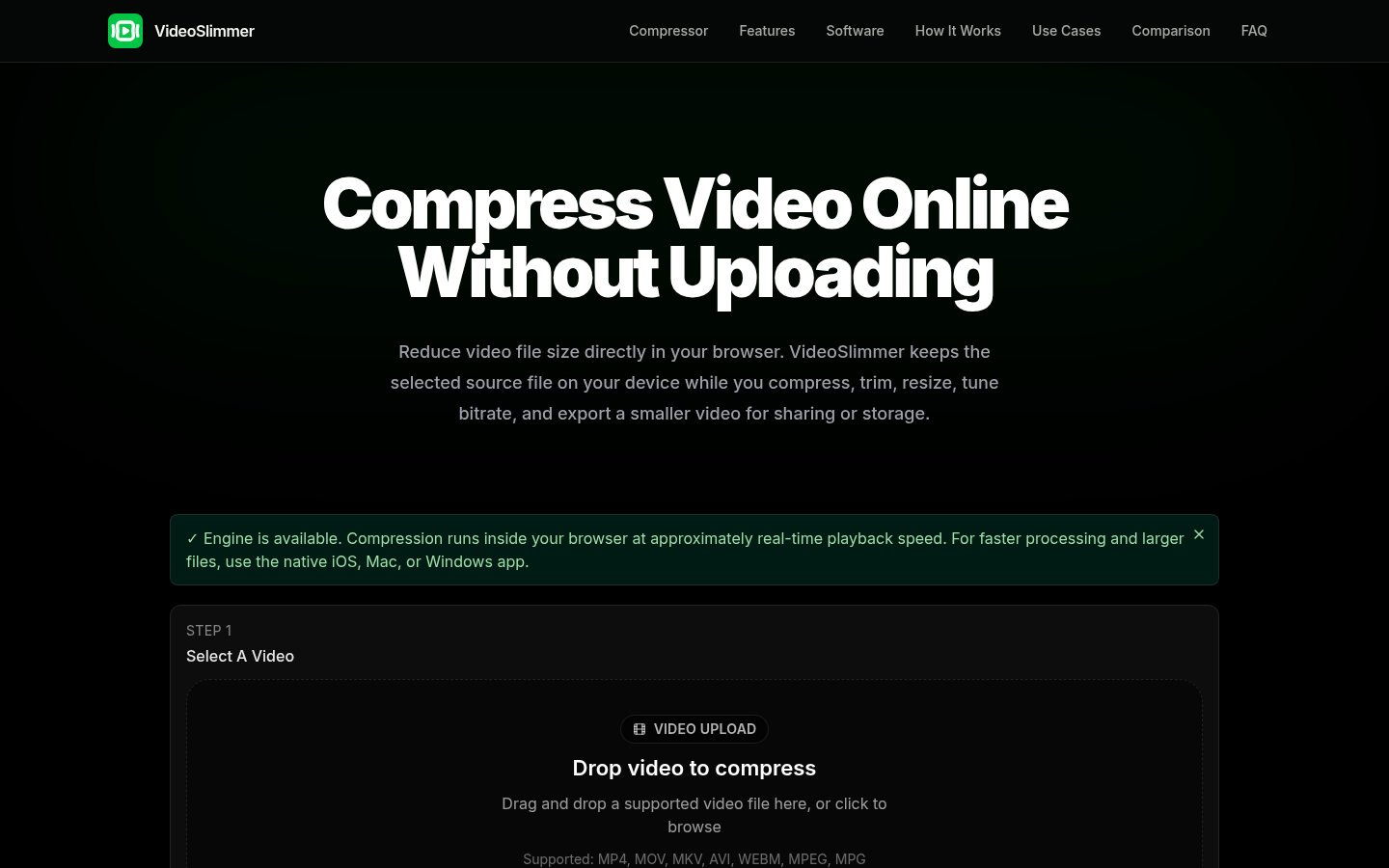
Screenshot archived from the listing page, for preview only.