Vmake Labs Video Enhancer
Free AI video enhancerTurn blurry video into 8K, free online
Highlights
What you can do with it
- Clean up phone-shot product clips before they go on an e-commerce detail page
- Fix over-smoothed or artifact-heavy AI-generated short videos
- Restore blurry home video or low-light night footage to 4K
- Sharpen screen recordings and course video for corporate training
How to use it
- 1 Upload your video by dragging, dropping, or pasting a file into the page
- 2 Let the AI choose the enhancement model, or pick 2K, 4K, or 8K by hand
- 3 Select a scenario model such as portrait, product, low light, gaming, or anime
- 4 Adjust brightness, contrast, saturation, and sharpness to taste
- 5 Preview the enhanced footage, choose a format, and download the file
Who it is for
Pros
- Free to use and fully online, with no software to install
- Resolution options go up to 8K for close-ups and large screens
- Dedicated models cover the most common shooting scenarios
- Handles the usual consumer video formats
Limitations
- The free terms shown on the page can change, so check before you rely on them
- Results depend on the source file; heavy damage cannot be fully rebuilt
- Choosing between models and parameters takes some trial and error
- It is a repair tool, not a substitute for reshooting weak footage
What Vmake Labs Video Enhancer is
Vmake Labs Video Enhancer is a browser-based AI video enhancement tool. The page describes it as free to use at a price of $0, and the whole workflow, upload, processing, preview, and download, happens online without installing editing software. Under the hood it applies AI super-resolution and detail restoration: the tool analyses the footage and then rebuilds edges, textures, and shadow detail that were lost to low resolution, blur, noise, flicker, or heavy compression. It also targets a modern problem, the plastic look of AI-generated video, where over-smoothing, repeated texture patterns, and unstable edges make a clip feel artificial.
What you can do with it
- Raise a low-resolution clip to 2K, 4K, or 8K for close-ups, product shots, or large screens
- Clean up blur, noise, flicker, and compression artifacts, and rebuild dark-area detail
- Reduce the artificial look of AI-generated footage so motion and textures read as more natural
- Pick a model tuned for portraits, products, low light, gaming, or anime, automatically or by hand
- Adjust brightness, contrast, saturation, and sharpness, then export in a common format
Who it is for
Social media and short video creators who shoot on phones and download a lot of material will find the one-click path useful. E-commerce and product marketing teams that need material texture, packaging text, and small details to stay legible can process clips before they reach a detail page. AI video creators who want to clean up generated footage are a clear fit, as are film, gaming, and anime fans restoring old or low-light material. Enterprises and training organizations that need text, faces, and screen operations to remain readable in course recordings make up another group, along with real estate, fashion, and beauty teams producing quick marketing video.
What to watch out for
Enhancement is repair, not magic. A badly damaged source will improve, but it will not become footage that was shot well in the first place, so reshooting stays the better option when you can. Model choice and parameter adjustment involve some trial and error; automatic mode is the sensible starting point, and manual models are for when you already know the scenario. The page marks the tool as free, but free terms on a web service can change without notice, so verify them before you build a workflow around it. Keep an eye on file size and processing time for long or high-resolution inputs.
FAQ
Is Vmake Labs Video Enhancer really free?
The page is marked at $0 and described as free to use, with processing done online in the browser. Confirm the current terms on the site before a large batch job.
Which video formats can I upload?
Common formats are listed, including MP4, MOV, M4V, 3GP, and AVI.
Can it improve AI-generated video?
Yes. There is a model aimed at AI-generated footage that reduces over-smoothing, repetitive textures, and unstable edges.
What output resolution can I get?
You can enhance to 2K, 4K, or 8K depending on the setting you choose before export.
Why it is free
What the official page says: free to use
Free limits, trial length and features are decided by the official site and can change at any time.
Product preview
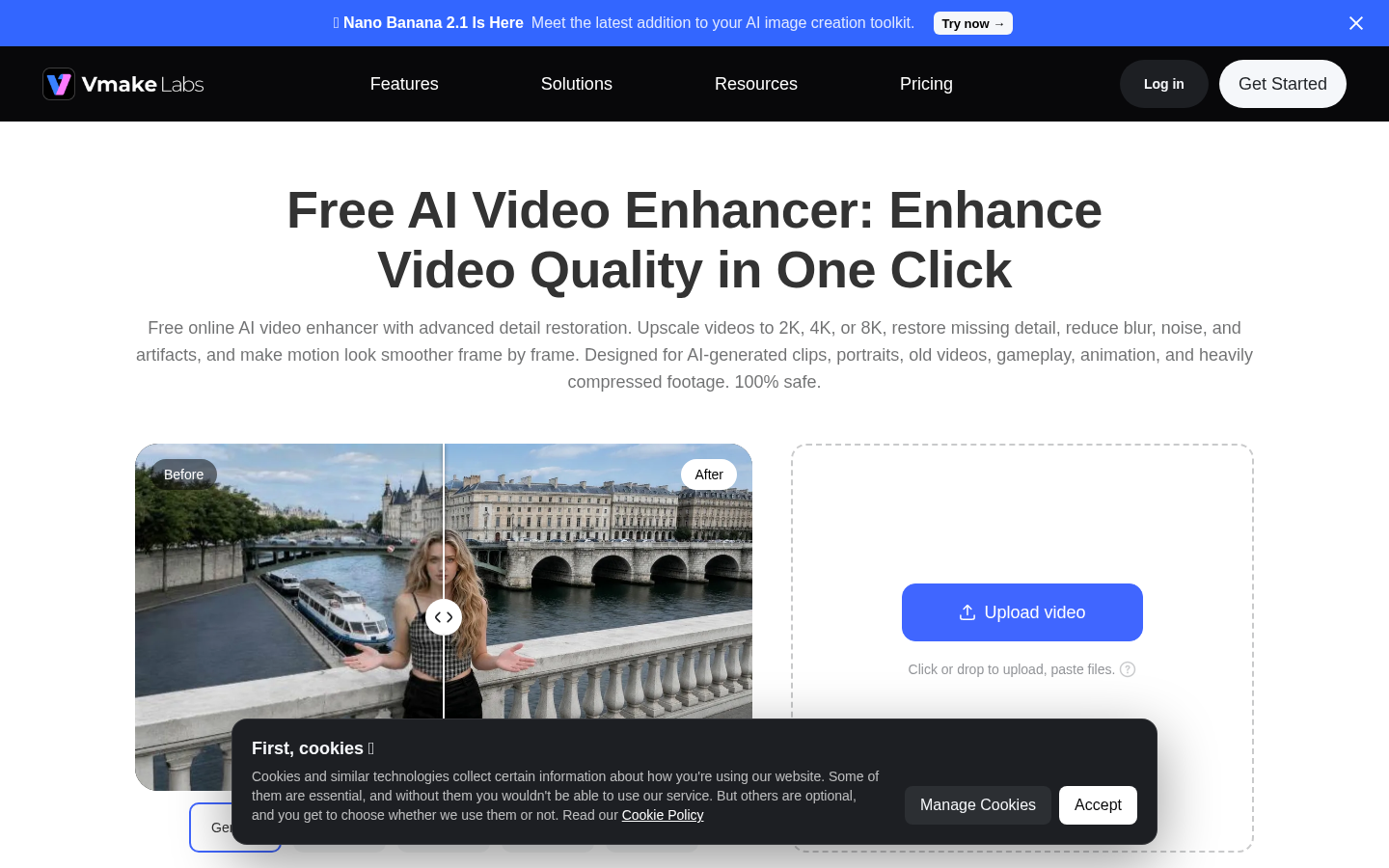
Screenshot archived from the listing page, for preview only.