GeekLink
Desktop subtitle extraction, transcription, and translationLocal subtitle tools for Mac and Windows
Highlights
What you can do with it
- A drama viewer extracts missing subtitles to finish a series
- A creator transcribes and translates multi-language interview footage
- A subtitle editor batch-processes documentary subtitles
How to use it
- 1 Download the GeekLink app for Mac or Windows from geeklink.dev
- 2 Install and open it; the 7-day trial starts with no registration
- 3 Pick the OCR, translation, or transcription tool you need
- 4 Import files and follow the tool prompts
- 5 Edit the resulting subtitles, then activate a license after the trial
Who it is for
Pros
- Local processing keeps files off the cloud
- No registration needed to start the trial
- Batch tools suit large subtitle jobs
Limitations
- Only a 7-day free trial; continued use needs a paid license
- Offline transcription requires downloading a model first
- macOS and Windows only, with no mobile or web version
What GeekLink is
GeekLink is a desktop application for Mac and Windows focused on subtitle extraction, translation, and speech transcription. It runs locally without uploading files, which the product positions as a data security advantage. A 7-day free trial starts automatically on first install with no registration or login. After the trial, a paid license is required, offered as monthly, annual, or lifetime plans; the lifetime option includes all future updates and 24,000 AI credits that never expire.
What you can do with it
- Extract embedded subtitles from video using OCR.
- Translate subtitle files into more than 40 languages.
- Transcribe speech offline after downloading the model.
- Batch process multiple videos through the AI subtitle factory.
- Edit and adjust extracted or generated subtitles.
- Switch interface languages including Chinese, Japanese, Korean, Spanish, and German.
Who it is for
- Binge watchers who cannot find complete subtitles.
- Video creators adding or translating subtitles.
- Professional subtitle editors handling large volumes.
What to watch out for
The free window is seven days, so plan around it. Offline transcription needs a model download before it works, and the app is limited to macOS and Windows with no mobile or web client. Subtitle extraction accuracy varies with video quality and burn-in style, so review results before publishing. Behavior may vary across browsers and devices, so test before production use and consult the help docs if errors appear. Features and interface details may change between versions, so review the latest notes on the page before you start. Free tiers and usage limits can change, so check the current rules on the official page before relying on it long term.
FAQ
How does the free trial work?
A 7-day trial starts automatically on first install with no registration or login required.
Are files uploaded anywhere?
No. The app runs locally and does not upload files, according to the product description.
What happens after the trial?
You need a paid license, available as monthly, annual, or lifetime. The lifetime plan includes future updates and 24,000 AI credits that do not expire.
Why it is free
What the official page says: free trial
Free limits, trial length and features are decided by the official site and can change at any time.
Product preview
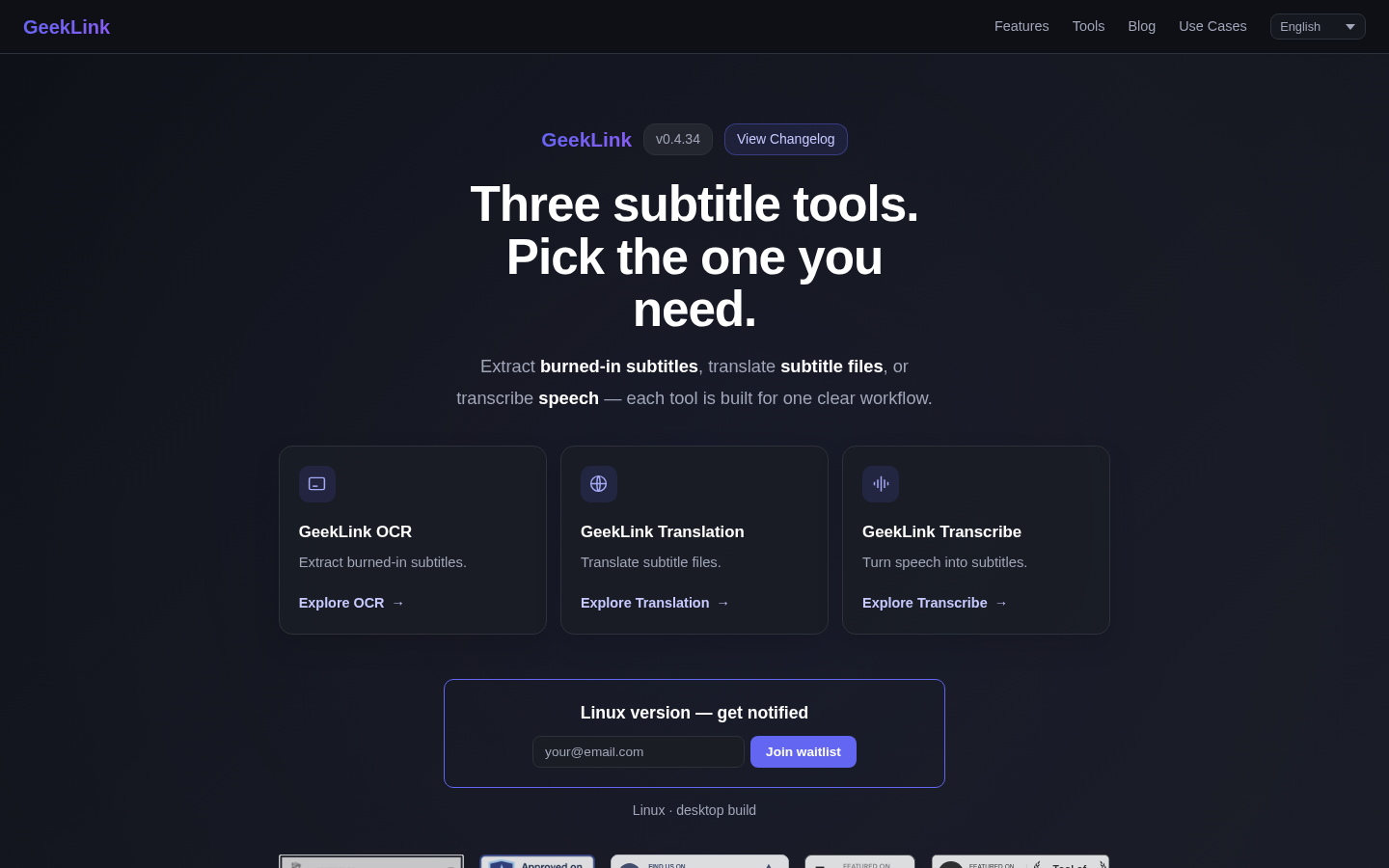
Screenshot archived from the listing page, for preview only.